
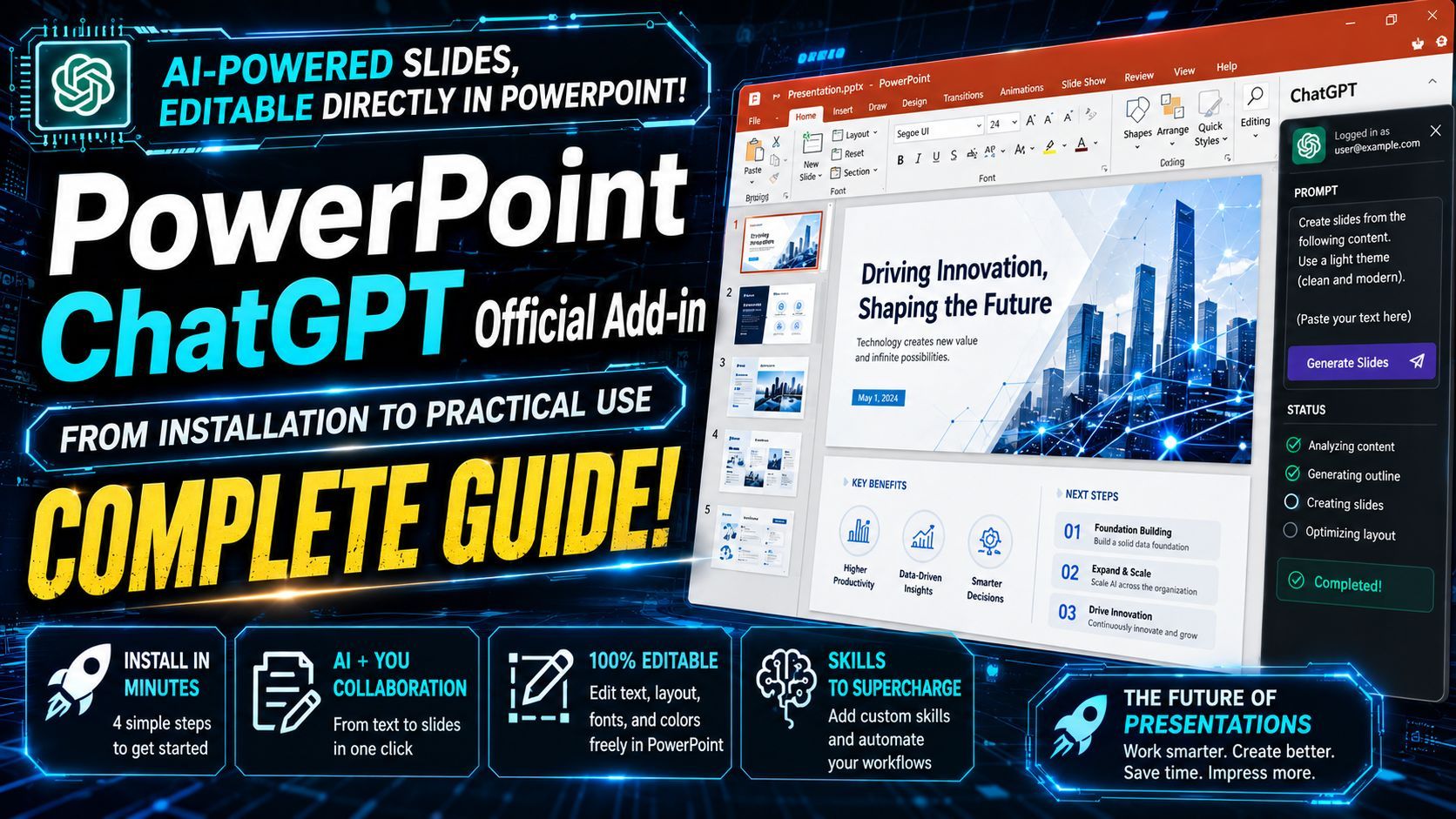
Generate Fully Editable PPTs in Seconds! The Presentation-Making Revolution with PowerPoint and the ChatGPT Add-in
A comprehensive guide on how to break through the "unchangeable flat image output" limitation that has plagued traditional AI slide generation tools. This post covers everything from the step-by-step setup of the official ChatGPT add-in for PowerPoint to practical collaborative workflows, as well as an engineer’s take on its pros and current room for growth. Learn a new approach to dramatically cut down presentation-making time and instantly turn your ideas into reality.

Hello everyone! Kudos to all of you grinding away at creating documents and slide decks every day.
Lately, the market has been flooded with AI-driven document and slide generation tools. But have you ever experienced that pure sense of despair where you eagerly try a tool, only to find out the output is just a flat picture (a single image)? You want to fix just one typo, but your hands are completely tied... Sounds familiar? While tools like NotebookLM are fantastic, we still often find ourselves hitting a wall when it comes to output formats.
However, the Official ChatGPT Add-in for PowerPoint that I’m introducing today is in a league of its own. Unbelievably, it outputs the AI-generated slide text and layout in a fully editable state right inside PowerPoint!
Today, from an engineer's perspective, I’ll dive deep into everything about this revolutionary tool—from its lightning-fast setup to practical workflows, along with the real pros and cons that I've noticed after putting it through its paces.
1. Lightning-Fast Setup in 4 Easy Steps
If you’re thinking, *"Installing an add-in? Getting company approval and configuring it sounds like a hassle..."*—worry not. You can get it done in just a few clicks from your browser.
Step 1: Access the Microsoft Marketplace
https://marketplace.microsoft.com/ja-jp/product/WA200010215?tab=Overview
First, open Microsoft's official marketplace (Microsoft Marketplace) in your browser and head to the ChatGPT add-in page for PowerPoint.
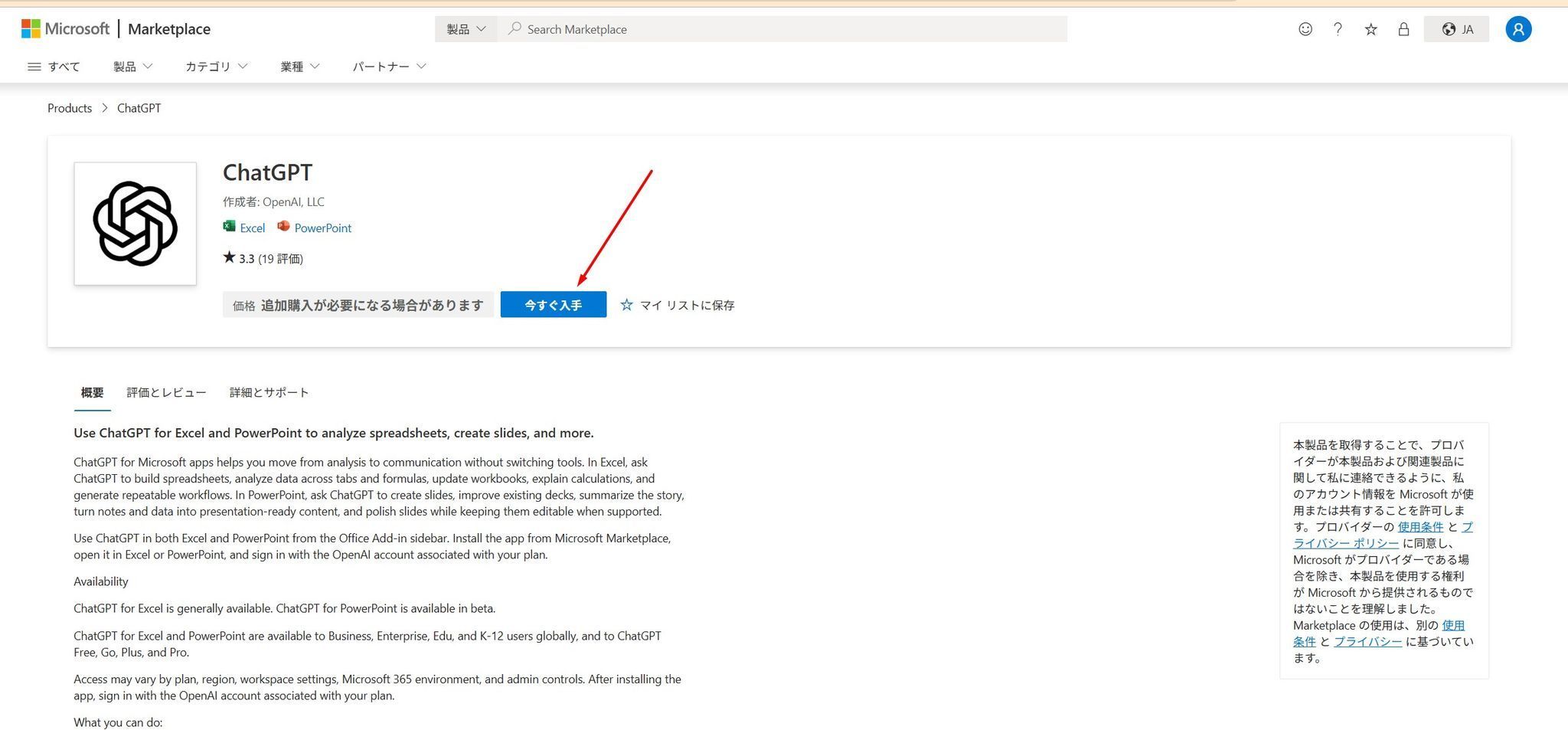
Step 2: Get the Add-in
Click the "Get it now" button displayed on the screen. A confirmation pop-up will appear; just click through to proceed.
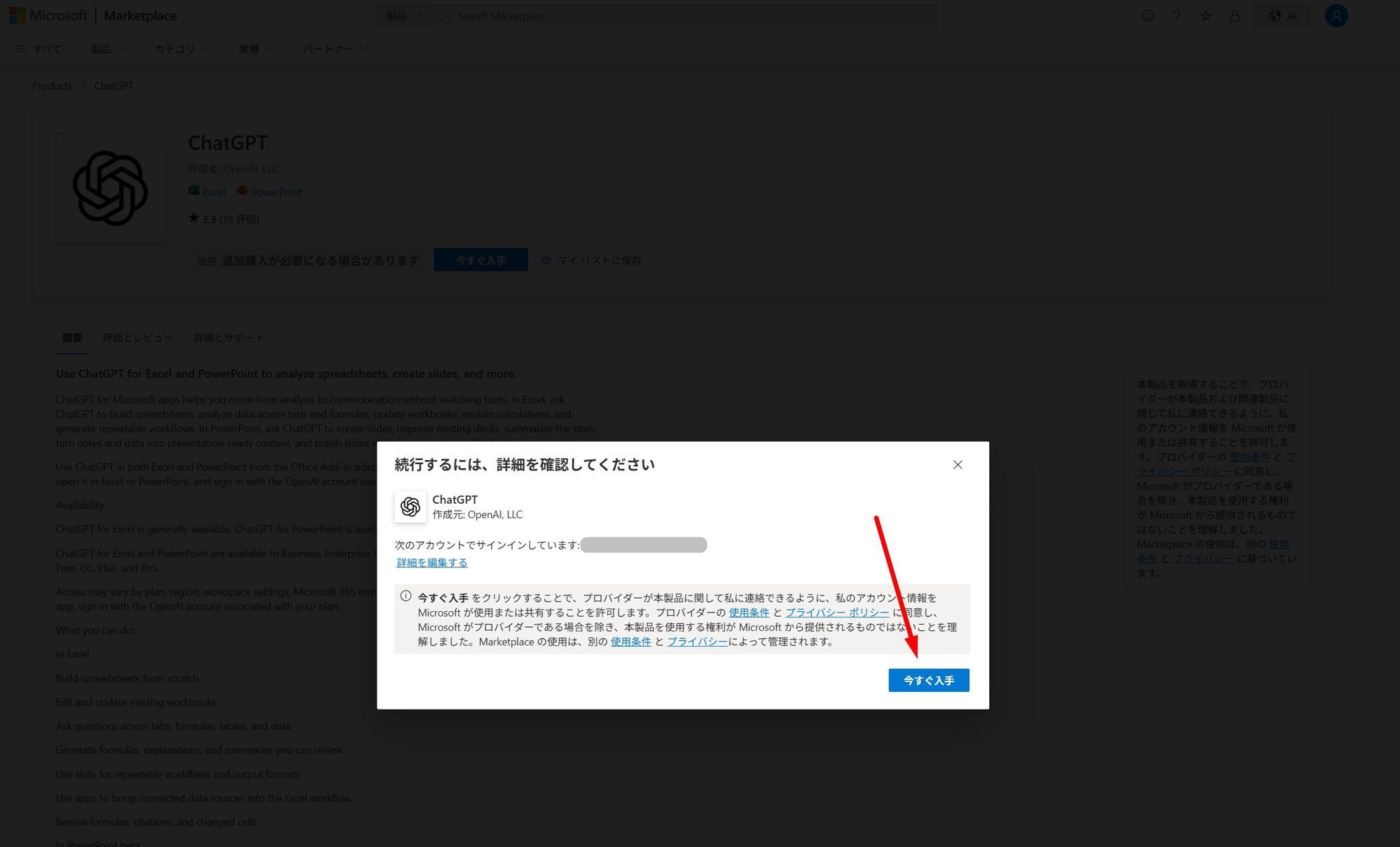
Step 3: Open in PowerPoint
Next, you’ll be asked whether you want to open this add-in in Excel or PowerPoint. Choose "Open in PowerPoint" without hesitation. As long as you have PowerPoint installed on your PC, the application will launch automatically.
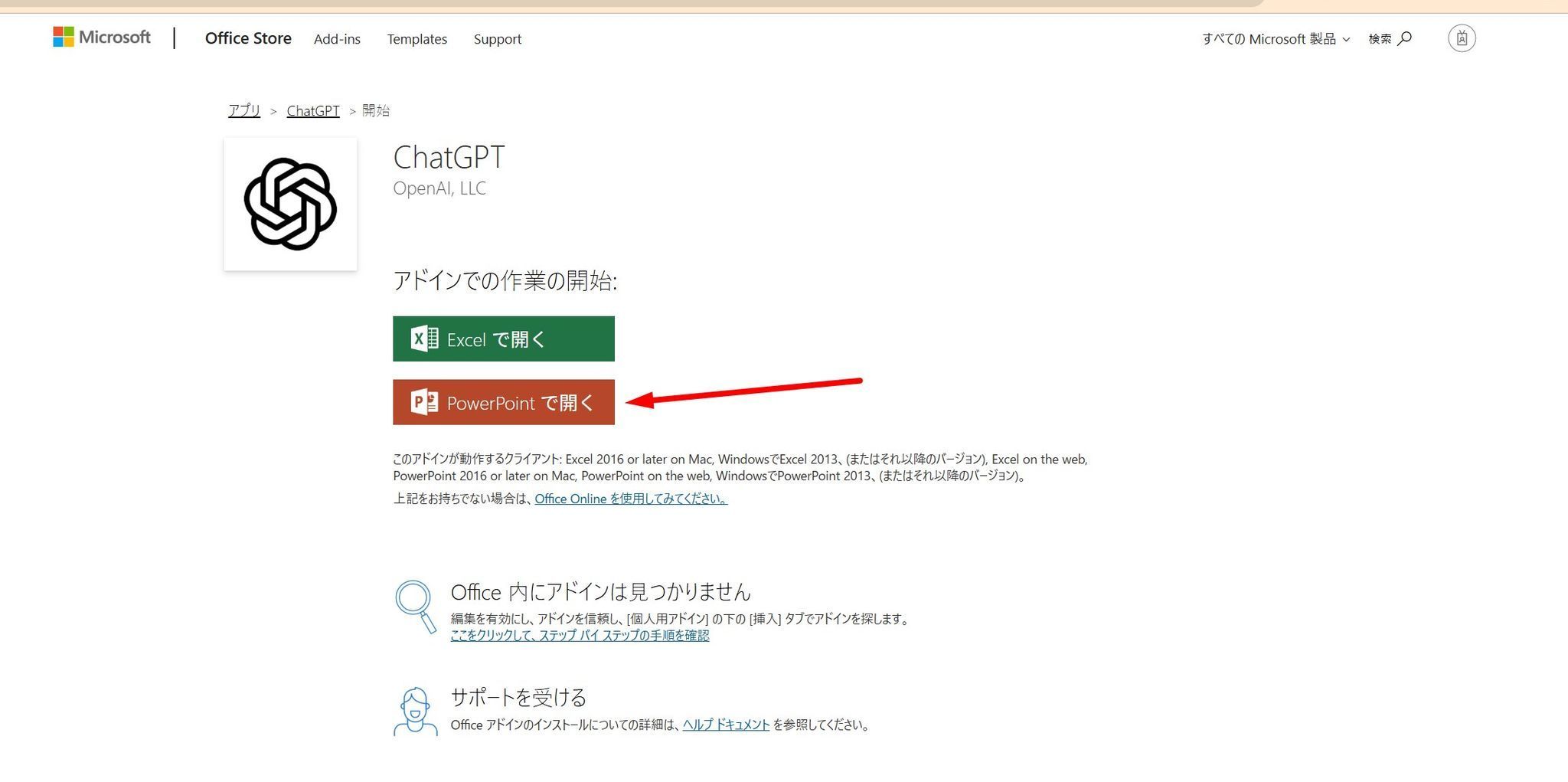
Step 4: Log In and You’re Good to Go!
Once PowerPoint launches, a dedicated ChatGPT sidebar (interface) will appear on the right side of your screen. Log in with your existing ChatGPT account, and you are all set!
2. In Action! How to Collaborate with AI to Build Slides
Now that we’re set up, let’s actually build some slides. For this demonstration, we'll look at the most efficient workflow, assuming you’ve already brainstormed with a generative AI like Gemini or ChatGPT and have a "base text (draft outline)" ready to go.
💡 The Magic Workflow
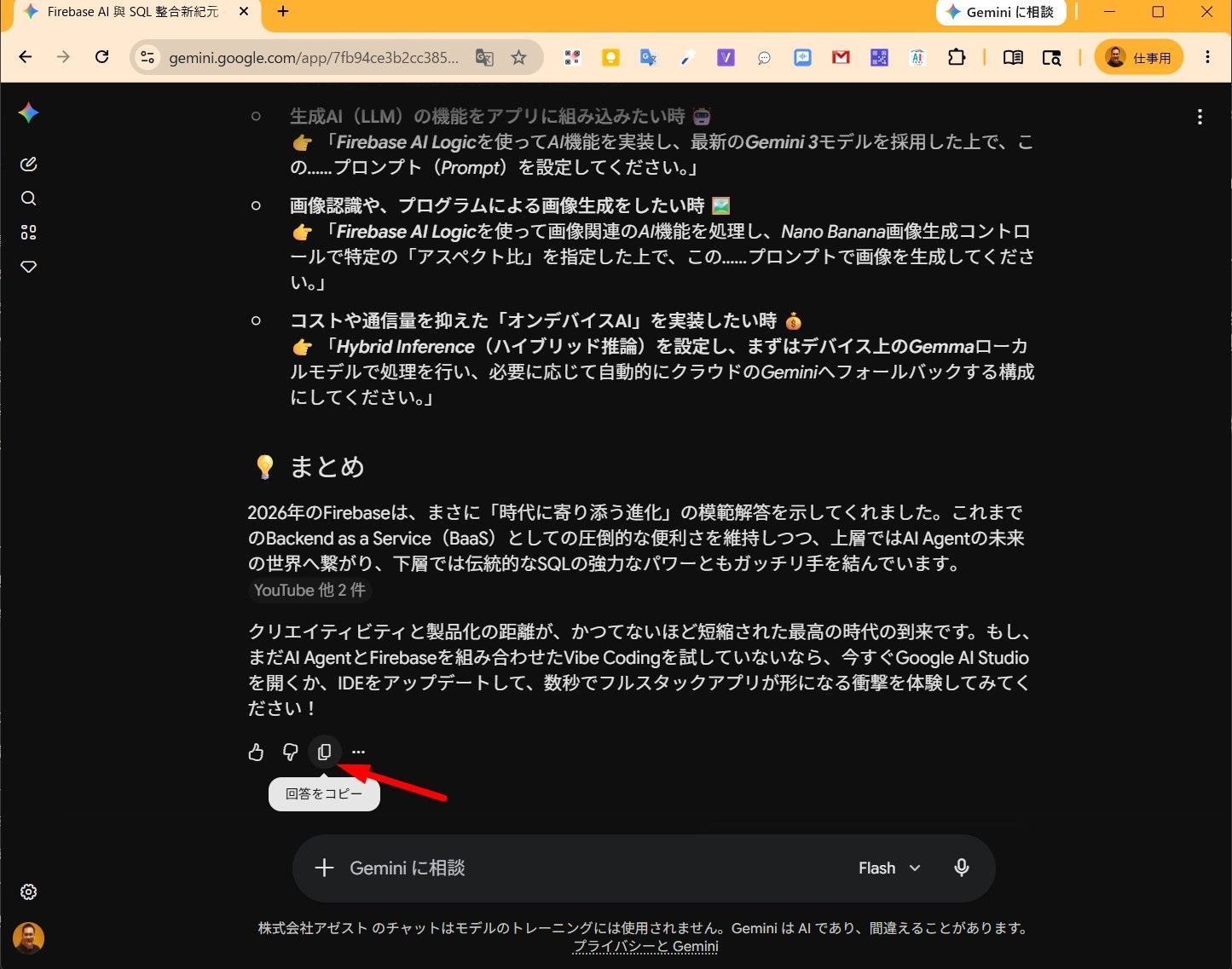
- Copy the text: Click the "Copy response" button in your AI chat tool to save the source text for your slides to your clipboard.
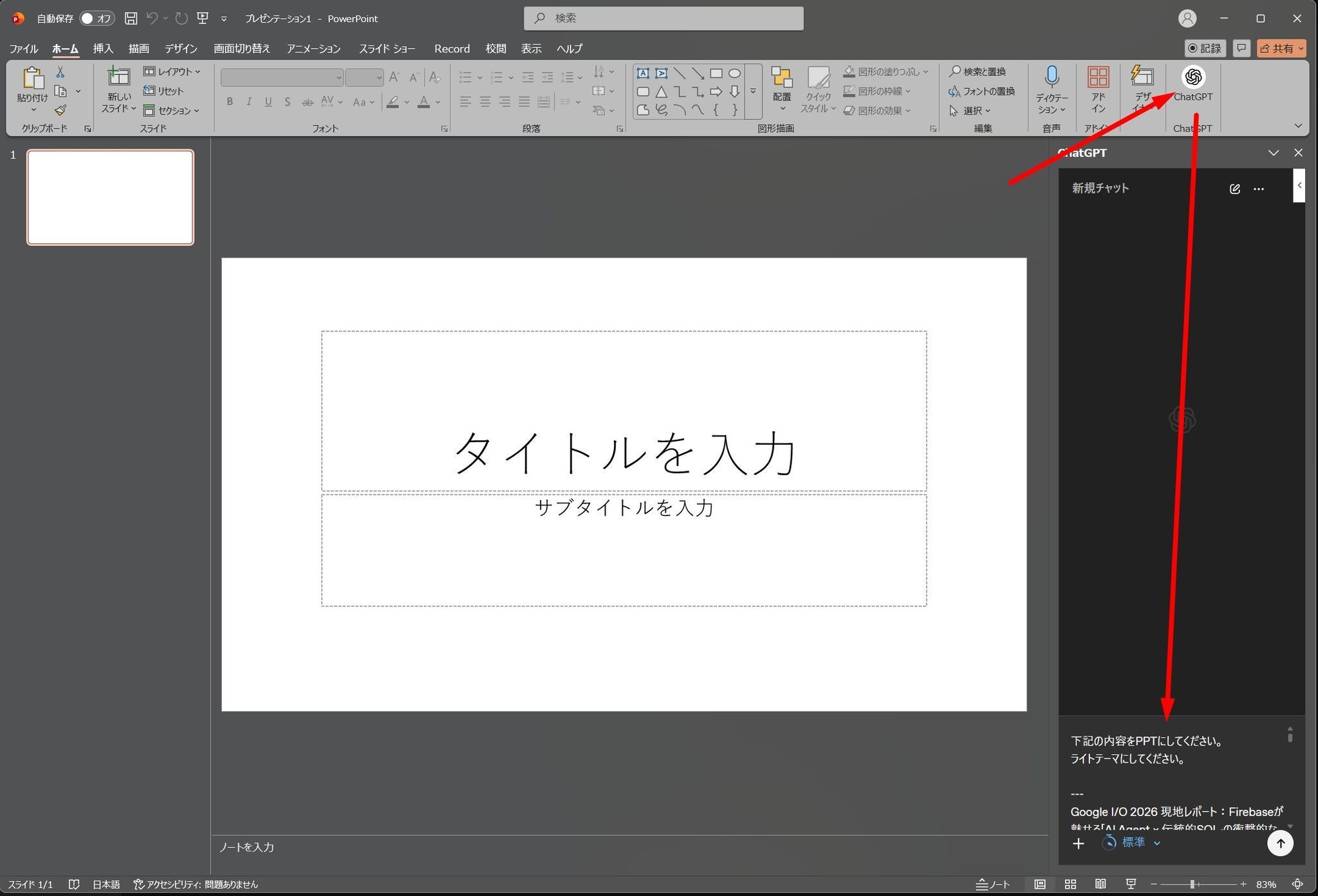
- Launch the add-in: Click the newly added "ChatGPT" icon located at the far right of the "Home" tab in PowerPoint.
- Enter your prompt: In the right sidebar, enter your instructions (prompt) like the example below.
Prompt Example: Please convert the following content into a PPT. Use a light theme (bright design). *[Paste the text you copied earlier right here]*
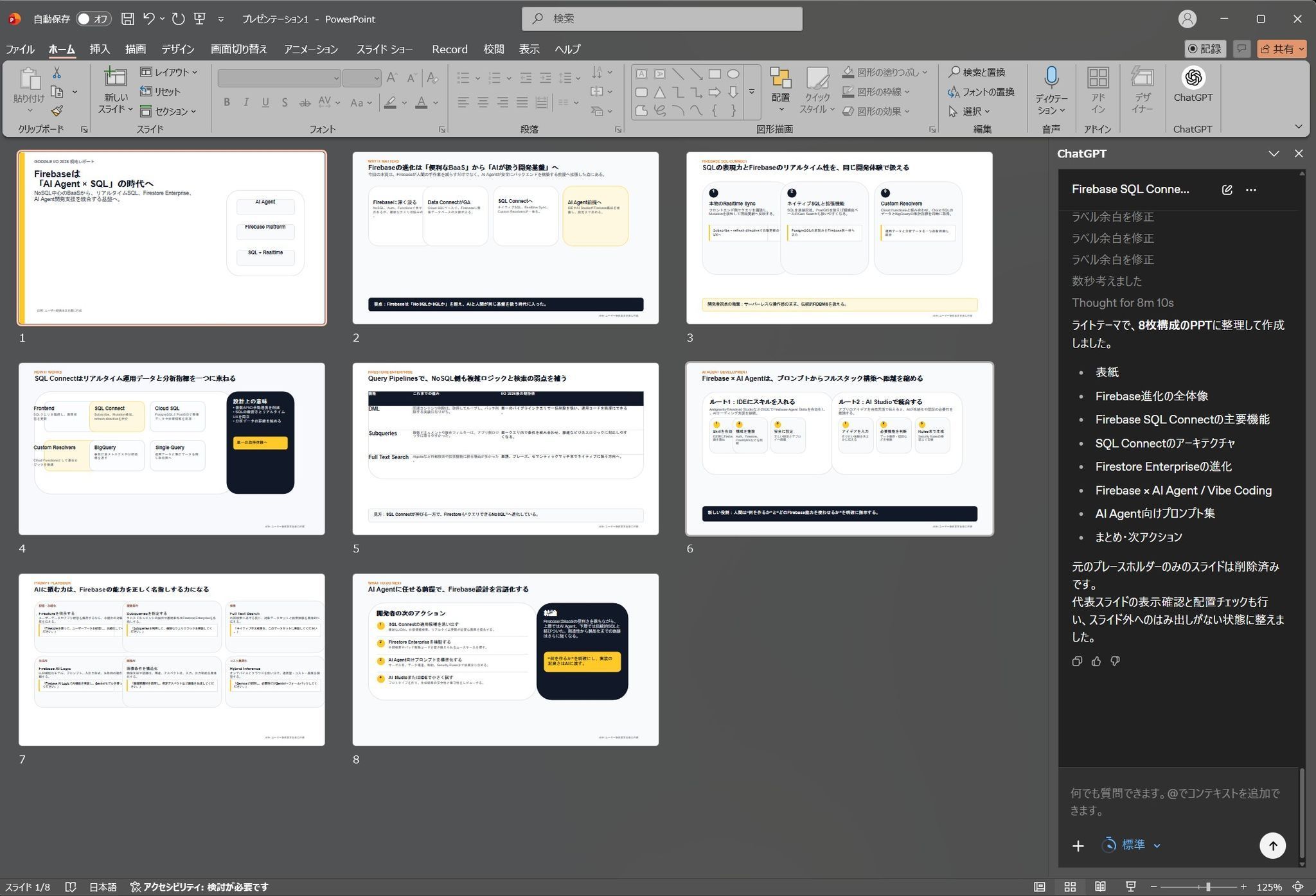
All that's left is to hit Enter. This system isn't just a basic one-click file converter; it operates as an autonomous Agent. It thinks "step-by-step" in the background, processing the slide structure and layout in phases, and finally outputs it into a PowerPoint format that we can fully edit.
And of course, even after it's generated, you can issue follow-up prompts like *"Actually, adjust the overall layout"* or *"Change this section's structure to look like this"* to refine it as much as you want.
3. A Calculated Engineer’s Perspective: Pros & Present "Room for Growth"
After thoroughly testing and playing around with this tool, here is my honest, professional breakdown.
⭕ Why It’s Mind-Blowing Pros
- 100% Editable: To reiterate, the output consists of native PowerPoint objects, not flat images. You can change fonts, tweak wording, and swap colors completely at will.
- Massive Time Saver: Since you can direct your AI brainstorming results straight into a presentation deck, the mind-numbing time spent repeatedly copying and pasting drops to zero.
❌ What Needs to Evolve Cons
One thing that made me go *"Hmm, interesting..."* during testing was its handling of "Portrait (vertical) layouts."
While standard landscape slide layouts look absolutely beautiful and polished, trying to make a pamphlet or vertical document by specifying a "portrait layout" sometimes trips the agent up. The design can fall apart slightly, or items might look awkwardly placed.
💡 Pro-Tip to Bypass This: If you want to tackle vertical layouts or unique styles, write your prompt instructions as specifically as possible. Clearly defining "what kind of vibe you want" or "which design style (e.g., minimalist, futuristic)" greatly increases your chances of getting it right on the first try. That being said, even if it fails, you're dealing with AI—just make it tune the deck a second or third time until you're satisfied!
4. The Real Deal The True Power of This Tool Lies in "Skills"
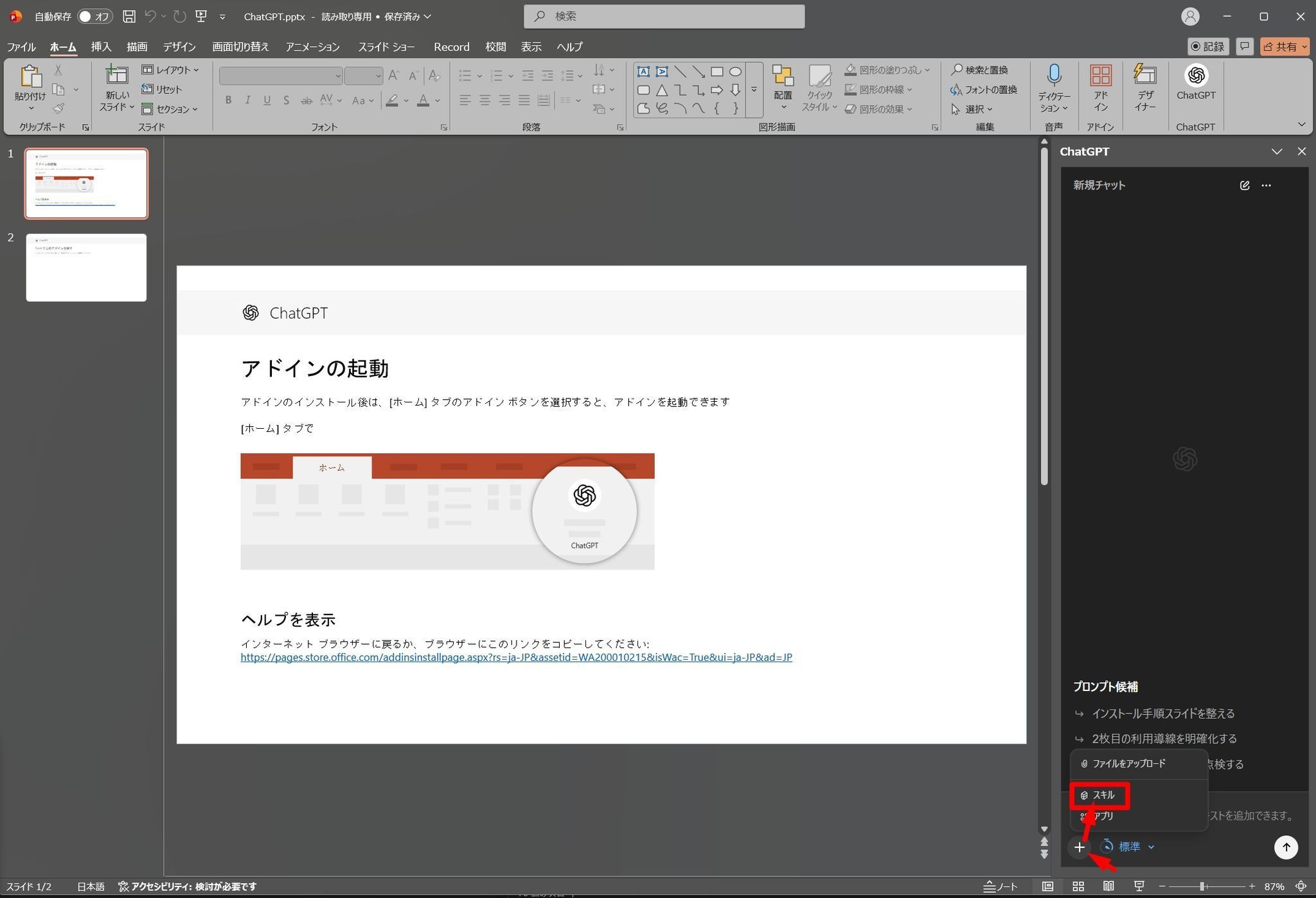
Lastly, let's talk about the feature that gets me the most excited. This add-in actually comes equipped with the ability to create and add your own custom "Skills."
If we can equip this add-in with various extended skills moving forward, it will completely rewrite the concept of presentation making. For example...
- Image Generation Skill: The AI could instantly generate illustrations perfectly matched to the slide content and automatically insert them.
- Page Structuring Script: It could automatically split pages and even write speaker notes based on a specific internal company template or industry-standard storytelling frameworks (like the PASONA framework).
In this way, you can install or build custom "skills" tailored to your specific workflows to supercharge PowerPoint. Once we get to that point, the quality of the slides generated will easily give professional designers a run for their money.
Conclusion: Try It Today and Experience Future Productivity
After trying out this add-in, I was honestly struck by a wave of awe: *"Wow, AI-assisted presentation making has actually come this far."* It's incredibly convenient, and above all, it makes working ridiculously fast.
While it is already fully practical for day-to-day use, this tool is still actively evolving. The only remaining question is: *"How well can we, as humans, master and hack this tool?"*
I highly encourage everyone to install the add-in right away, experiment to find your ideal prompts, and discover your ultimate setup of "Skills." Let's cut our presentation-making time in half and free up more time for creative work!
Technological progress is truly exhilarating. What kind of "Skills" would you want to implement in your AI?